• Zur Metanavigation
  • Zur Hauptnavigation
  • Zur Suche
  • Zum Inhalt
  • Zur Subnavigation
  • Zum Seitenfuß
  • University of Hamburg
  • For journalists
  • Staff Service Portal0
  • STiNE
https://www.kus.uni-hamburg.de/aktuelles.json?recentnews=true
  • Institutions and target groups
    • Einrichtungen
      • Faculties

        • Faculty of Law
        • Faculty of Business, Economics and Social Sciences
        • Faculty of Medicine
        • Faculty of Education
        • Faculty of Humanities
        • Faculty of Mathematics, Informatics and Natural Sciences
        • Faculty of Psychology and Human Movement Science
        • University of Hamburg Business School
      • Services

        • Study Information Net STiNE
        • Surfmail
        • Exchange
        • Staff Service Portal
        • Learning Platforms
        • Katalogplus – Catalogue of Hamburg Libraries
        • SharePoint
      • Student facilities and services

        • Campus Center
        • Career Center
        • PIASTA
        • AStA (student council)
        • University Sports
        • University Music
        • Family Office
        • University Language Center
        • General Languages
        • Office of Affairs for Students with Disabilities or Chronic Diseases
        • Departmental libraries
        • Healthy Campus
      • Further facilities and services

        • The Cluster of Excellence CLICCS
        • The Cluster of Excellence CUI
        • The Cluster of Excellence Quantum Universe
        • The Cluster of Excellence Understanding Written Artefacts
        • Hamburg Research Academy
        • Pier Plus
        • Hamburg Center for University Teaching and Learning (HUL)
        • Hub for Crossdisciplinary Learning (HCL)
        • CEN
        • Museums and collections
        • University Archives (in German)
        • Regional Computing Center (RRZ)
        • University Administration
        • Knowledge Exchange Agency
        • The Unikontor Shop (in German)
    • Target groups

      • Prospective students
      • Students
      • International prospective students
      • Young researchers
      • Researchers
      • Instructors
      • Staff
      • Prospective continuing education students
      • Alumni
      • Journalists
      • Refugees (in German only)
    Close
  • Language
    • English
    • Deutsch
  • /en/sitemap.json
University of Hamburg - to research, to teach, to educate and form, to homepage
Department of Mathematics
  • About the Department
    • News & Events
    • Administration & Management
    • Gender Equality
    • By and for Students
    • Job opportunities
    • The Beauty of Mathematics
    • Contact & Directions
  • Studies
    • Academic Services Office
    • Information for Lecturers
    • Information for Students
    • Bachelor's programs
    • Master's programs
    • Promotion und Habilitation
  • Research
    • Research Areas
    • Clusters of Excellence, Research Training Groups and Collaborative Research Centres
    • Interdisciplinary Work Groups and Centres
    • Publications
  • Transfer
    • ERASMUS+
    • Teacher training
    • Teaching export
  • People
    • All by Name
    • All by Work Group
    • All by Function
  • Service
    • Library
    • Location / Directions
    • Opening hours Geomatikum
    • IT Service
    • First Aid / Safety at Work
    • Student Refectory
    • In-House Technician / Porters Lodge
    • Intern

Photo: UHH/Thede

  1. UHH
  2. MIN
  3. Department of Mathematics
  4. Service
  5. IT Service
  6. Sicherheit
  7. Virenschutz
  8. Mac-Installation von Sophos für den FB Mathematik

Mac-Installation von Sophos für den FB Mathematik

Installation macOS for UHH devices

Important: Please uninstall the old version of Sophos antivirus first. Start the "Spotlight" search by simultaneously pressing Command+Spacebar then enter "Remove Sophos" - the uninstall program will be shown as an "App". Please see Sophos Website for deinstallation

Please download the installation program, configured for the Mathematics departement, from the following internal webpage - for the login use your Kerberos identifier of the Mathematics departement.:

Download of the Math-Sophos-Install.dmg

In order to verify if the downloaded file is the corect one, please use the commandline toolshasum:

cab2b084a02e062edaaab1f453be4345eaff420f964f3758c80ba820526b1297 Math-Sophos-Install.dmg

If the checksums are identical, open the file Math-Sophos-Install.dmg by doubleclicking on it.

Below follows a galery of screenshots regarding the individual steps of the installation process:

Screenshots of the Sophos Installation in macOS
Screenshot der Sophos-Installation

Photo: Peters

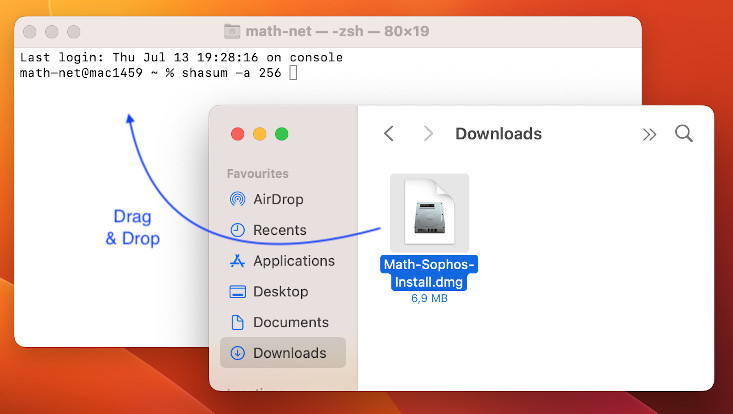
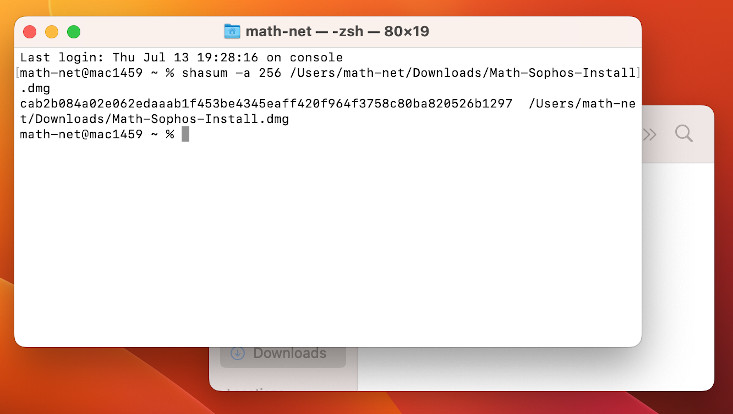
Verifying the checksum of the downloaded file:

  • start the command line tool (e.g. by pressing Command+Spacebar simultaneously)
  • shasum -a 256
  • Drag&Drop the Math-Sophos-Install.dmg from the "Finder" into the command line
  • press "ENTER" in the command line

SHA256 = cab2b084a02062edaaab1f453be4345eaff420f9643758c80ba820526b1297
Screenshot der Sophos-Installation

Photo: Peters

Checksumme der heruntergeladenen Datei überprüfen:

  • Terminal starten (z.B. Command+Leertaste drücken und suchen)
  • shasum -a 256
  • Math-Sophos-Install.dmg aus dem Finder per Drag&Drop ins Terminal-Fenster ziehen
  • im Terminal Eingabetaste drücken

SHA256 = cab2b084a02e062edaaab1f453be4345eaff420f964f3758c80ba820526b1297
Screenshot der Sophos-Installation

Photo: Peters

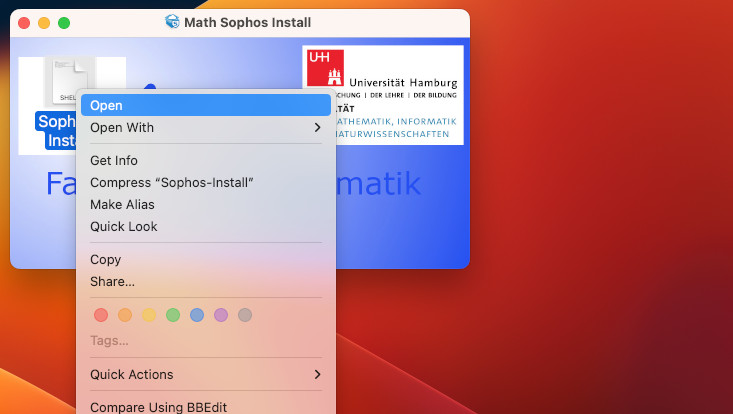
After opening the file "Math-Sophos-Install.dmg", start the program "Sophos-Install" by right-click followed by "Open".
Screenshot der Sophos-Installation

Photo: Peters

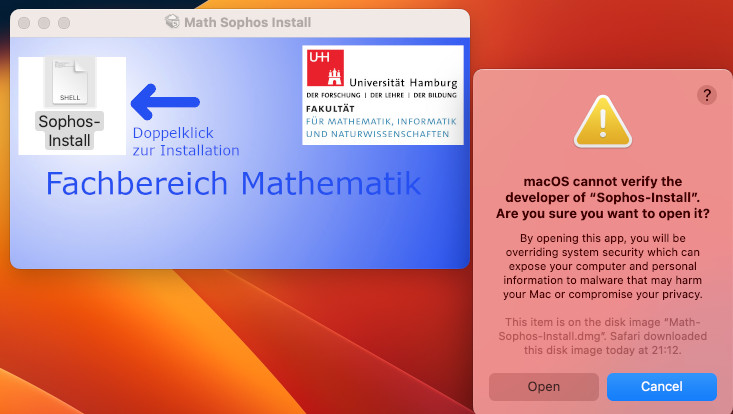
In the following dialog please confirm that the file might be opened (after the checksum has hopefully being verified).
Screenshot der Sophos-Installation

Photo: Peters

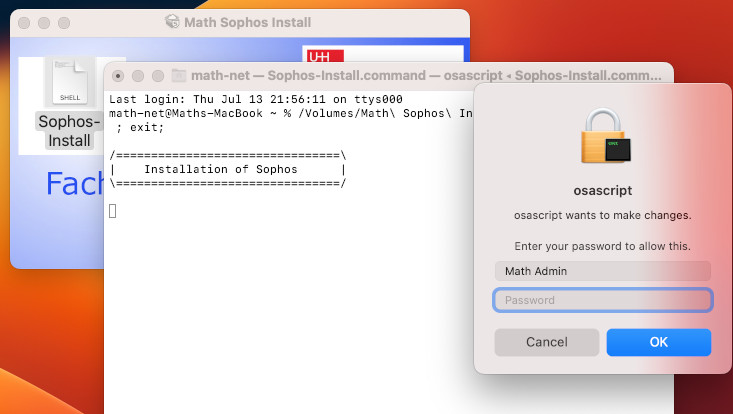
Now the installation process begins, wherefore administrator right needs to be obtained.
Screenshot der Sophos-Installation

Photo: Peters

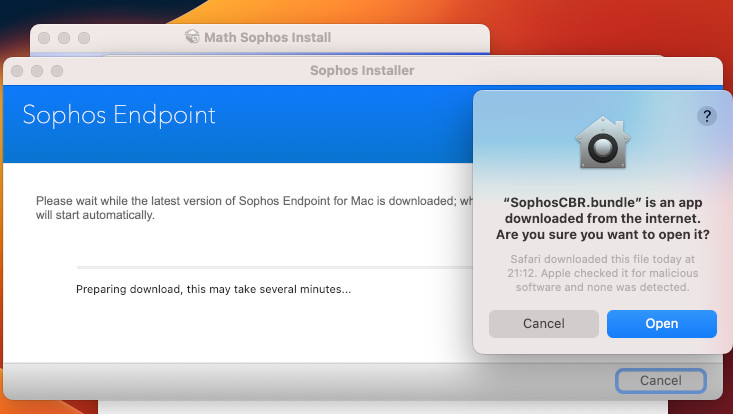
.... once again it needs to be confirmed that the program has been downloaded from the internet.
Screenshot der Sophos-Installation

Photo: Peters

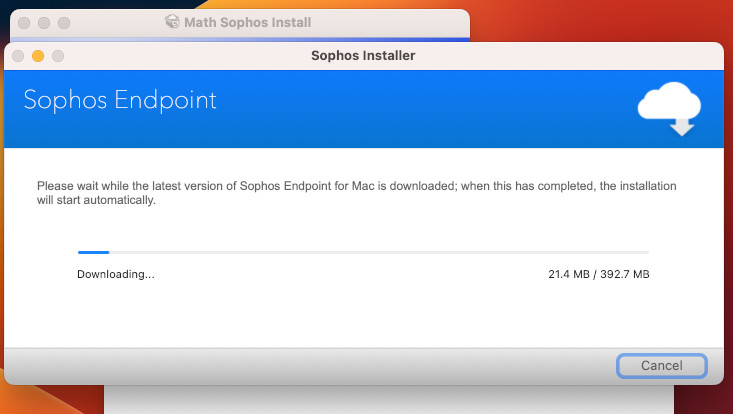
Meanwhile, Sophos is busy, downloading some files from the Sophos website. At this point of the installation process it might possibly happen, that an installation error occours, if an predesessor product or remainings of it are still installed.

If that is the case, please contact the IT-group(rt"AT"math.uni-hamburg.de?subject=Probleme+mit+der+Sophos-Installation+in+MacOS) or follow the recommendations on the Sophos website (How To Uninstall) (Removal Tool)
(Deinstallation on the command line) (Remove extensions).
Screenshot der Sophos-Installation

Photo: Peters

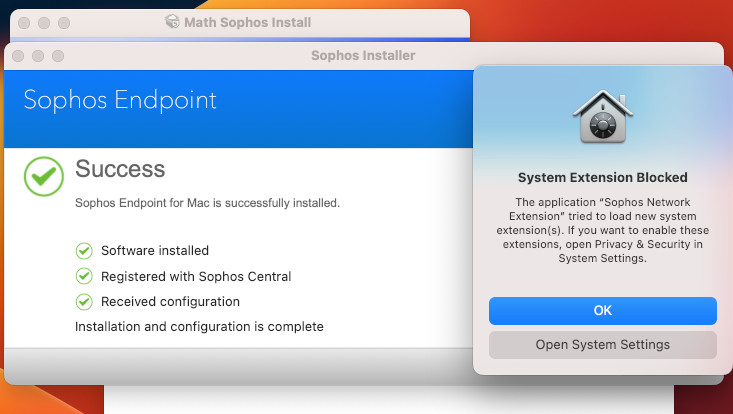
Success! ... still some work needs to be done.

(Without screenshot) At about this point of the installation process a popup window will appear at the upper right corner of the screen, stating that Sophos wants to send notifications. These should be allowed (in case something strange is going on, you want to be informed about it) by clicking on the button "Options".
Screenshot der Sophos-Installation

Photo: Peters

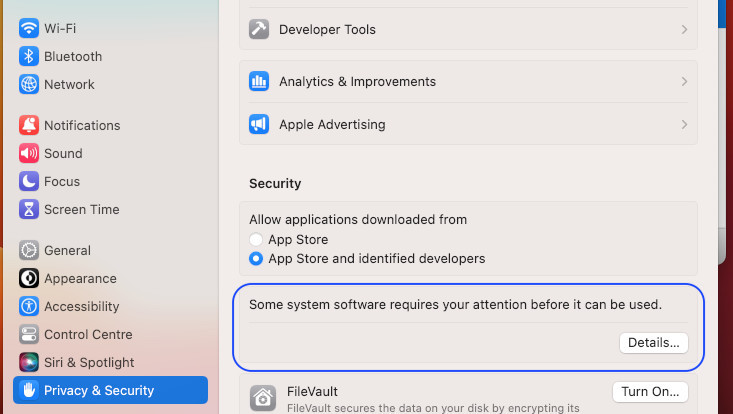
In the system settings under "Privacy and Security" you will find the information that system extensions need to be allowed.
The first extension called "Sophos Network Extensions" and one step further "Sophos Scan ID" - both need to be wlloed separately.
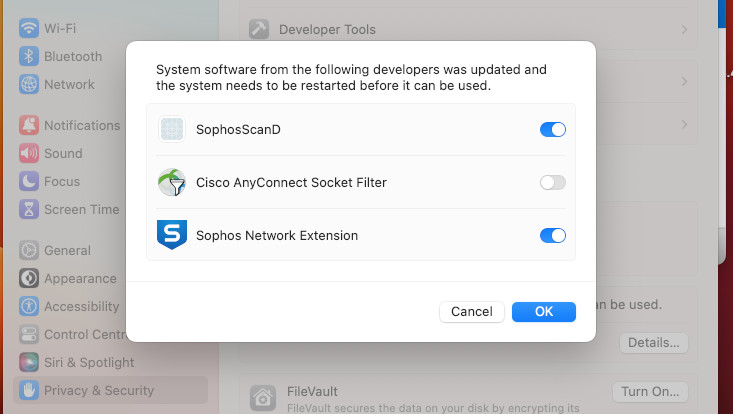
Screenshot der Sophos-Installation

Photo: Peters

At least the following system extensions needs to be allowed: "Sophos Network Extension" and "SophosScanD".
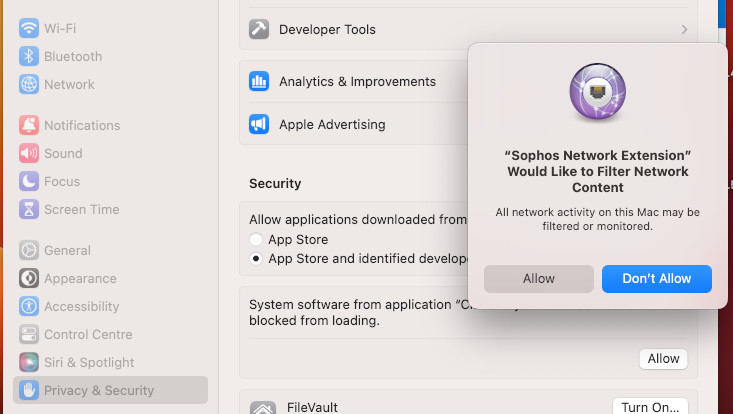
Screenshot der Sophos-Installation

Photo: Peters

The "Sophos Network Extension" wants to activate a network filter. This can not be avoided, even it is nearly inactive in its function.
Screenshot der Sophos-Installation

Photo: Peters

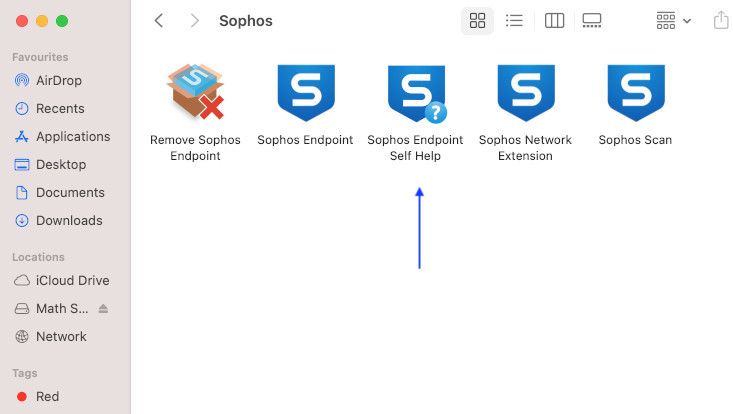
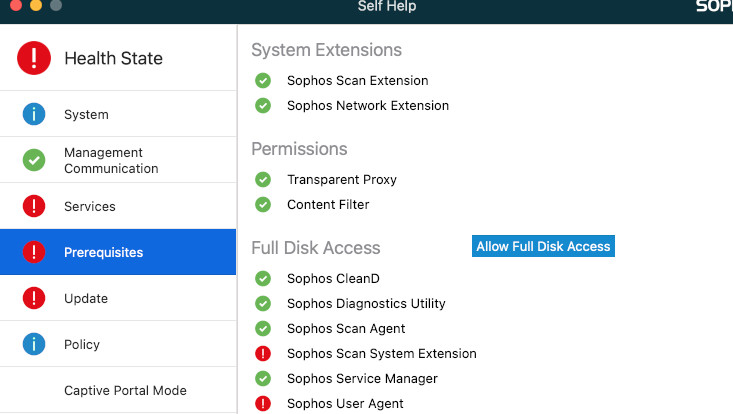
Last step: In the Finder window go to "Applications" -> "Sophos" and start the tool called "Sophos Endpoint Self Help"
Screenshot der Sophos-Installation

Photo: Peters

... to grant full disk access to the Sophos components.

Depending on the circumstance that (another) Sophos has previously been installed, some green checkmarks are shown, but possibly also some red exclamation marks.

Please use the button "Allow Full Disk Access" ...
Screenshot der Sophos-Installation

Photo: Peters

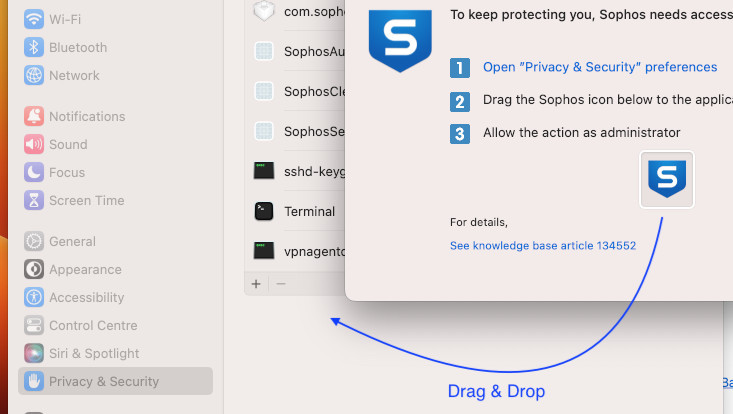
The new window should be self explaining ...

Use Drag&Drop to drag the Sophos icon to "Full Disk Access" within the system settings (administrator rights will be needed) and the installation process is finished.

Last but not least restart your Mac in order to Sophos can start its work.

  • IT Service

  • IT security
    • Virenschutz
    • AFS network filesystem
    • Request Tracker
    • IT-Group

    Last update: 19 July 2023

    • Feedback
    • Legal notice
    • Privacy statement
    • Accessibility
    • Site map

    University of Hamburg

    Innovating and Cooperating for a Sustainable Future in a Digital Age

    • Follow us on Instagram.
    • Follow us on Facebook.
    • Connect with us on LinkedIn.
    • Follow us on Mastodon.
    • Follow us on Bluesky.
    • Subscribe to our channel on YouTube.
      • Studies
      • Prospective students
      • Continuing education
      • Research
      • Teaching at UHH
      • Doctoral studies
      • Job opportunities
      • Knowledge exchange
      • University
      • Excellence
      • Faculties
      • Alumni
      • Contact
      • Campus Navigator
      • UHHApp
      • Emergencies, safety and security
      • Antidiscrimination
    Go to family-friendly higher education institution audit
    Go to internationalisation re-audit
    Go to the Sustainability Audit page
    Go to Diversity Audit
    Go to System accreditation

    © 2026 University of Hamburg. All rights reserved